

How to Build a Rental Property Website with WordPress
You don't need a monthly software subscription to run a professional rental website. When building a rental property website with WordPress and the free LeaseFox plugin, you can publish available units, take rental applications, send invoices and give tenants their own portal, all on your own domain.
This guide walks through the whole setup, from domain name to tenant portal. No coding required.
What you'll need
| Item | Typical cost | Notes |
|---|---|---|
| Domain name | Usually $10–$20/year for a .com | Use your business name or city, such as smithrentals.com |
| WordPress hosting | Varies by host | Choose a host with SSL, backups and one-click WordPress installs |
| WordPress | Free | Open source, from WordPress.org |
| LeaseFox plugin | Free core; paid plans from $149/year | Paid plans add online rent payments, e-signatures and more |
| SSL certificate | Usually included | Required before tenants log in or pay online |
Step 1: Choose hosting and a domain
Pick a host that offers one-click WordPress installs, free SSL and automatic backups. Many hosts include a free domain for the first year. Choose a short, memorable name that includes your business name or city. It builds trust with applicants.
Step 2: Install WordPress and a theme
Use your host's one-click installer, then log in at yourdomain.com/wp-admin. For the design, a fast, lightweight theme such as Astra or Kadence (both have free versions) is a good starting point. Install it under Appearance → Themes → Add New.
Step 3: Install LeaseFox
Go to Plugins → Add New, search for "LeaseFox," then install and activate it. You can also download it from WordPress.org. A LeaseFox menu appears in your dashboard.
Step 4: Add properties and publish your listings
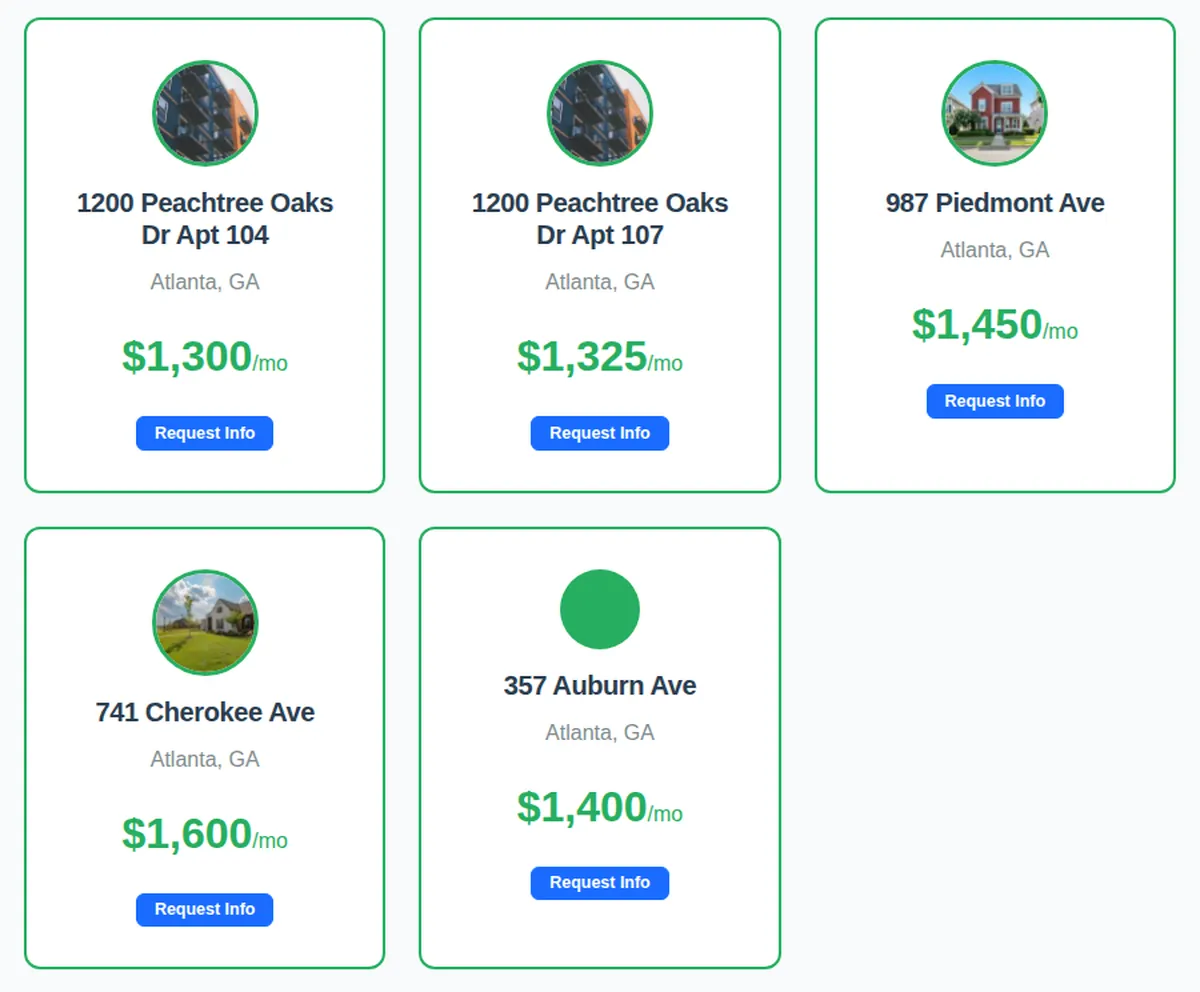
Add each unit with its address, bedrooms, bathrooms, monthly rent, status and photos. Already have a list? Import it from a CSV file. Then use LeaseFox's listing shortcodes to show available units on a public page. The LeaseFox documentation has the details.
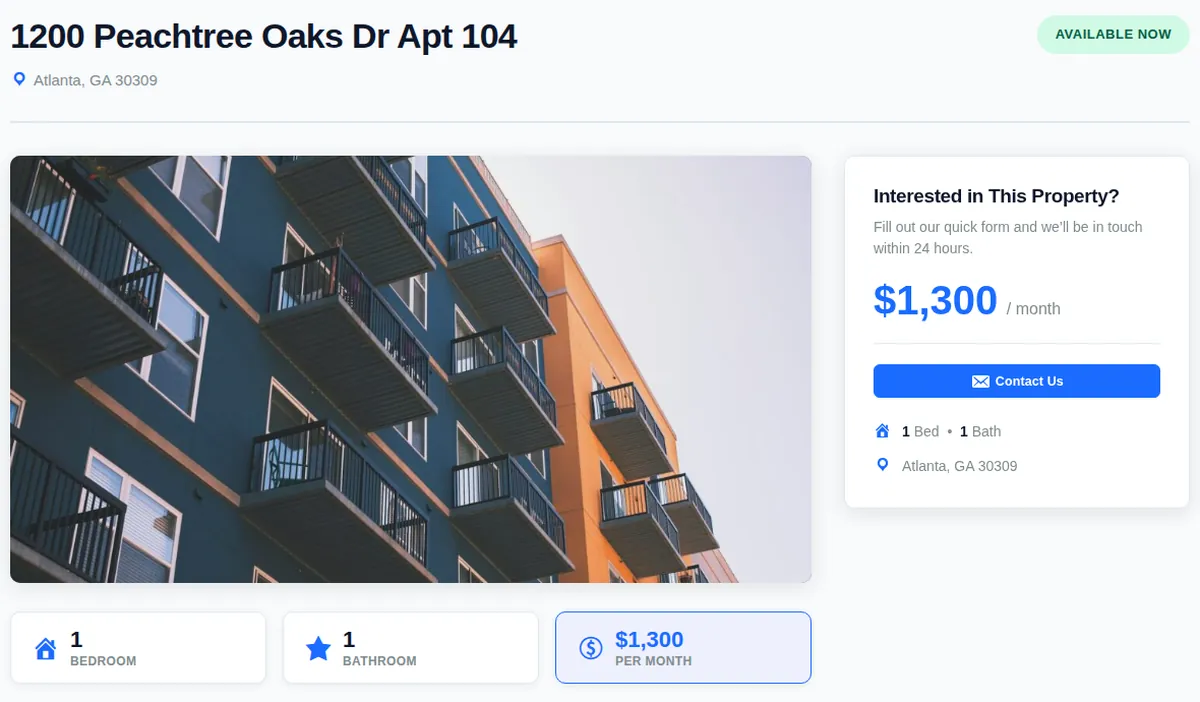
Each property gets its own detail page with photos, rent, bed and bath count, location and an inquiry button. Inquiries show up in your LeaseFox dashboard.
Step 5: Accept rental applications online
LeaseFox includes an online rental application, so applicants can apply from your website instead of emailing forms back and forth. New applications appear in the tenants area of your dashboard for review.
Step 6: Set up the tenant portal
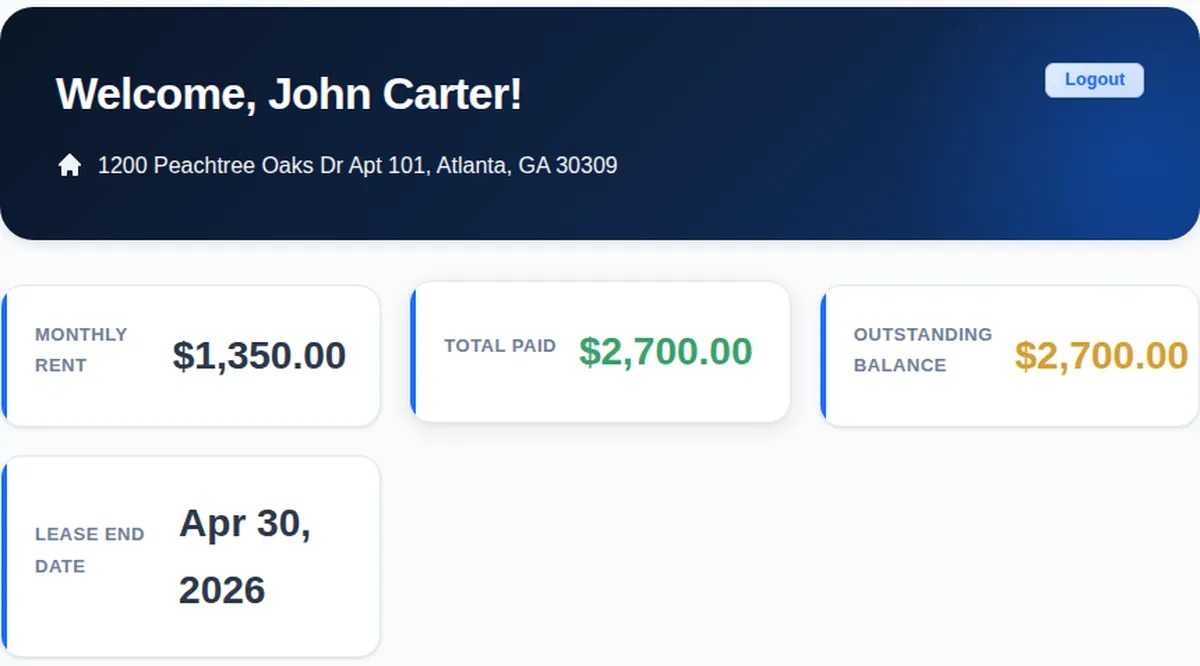
Tenants log in to a password-protected portal that's separate from WordPress admin. There they can see their monthly rent, total paid, outstanding balance, lease end date and invoices.
Step 7: Automate invoices, then add online payments
Turn on auto-invoicing so rent invoices are created and emailed each month. When you're ready to collect rent online, LeaseFox's paid plans add Stripe payments, partial payments and a full tenant ledger.
Frequently asked questions
Do I need coding skills?
No. Everything in this guide uses the standard WordPress dashboard and plugin settings.
How long does setup take?
Installing WordPress and LeaseFox takes minutes. Adding your properties, photos and tenants takes longer, depending on your portfolio size. Importing a CSV speeds that up.
Is WordPress secure enough for a tenant portal?
Yes, with good habits: use SSL, keep WordPress and plugins updated, use strong passwords and keep regular backups.
Deciding between free and paid tools? Read free vs. paid WordPress property management plugins.
See it before you build it. Explore the LeaseFox demo site, then install the free plugin.